Create Memorable Connections with SalesMail Lenses (Now available in mobile app!)
NEW: Mobile lenses are now available! Check App Store or Google Play and update your app to SalesMail 2.2.0!
Use SalesMail Lenses to boost engagement and make your videos stand out.
Add backgrounds, beautify your appearance, or share seasonal and themed messages. Many lenses let you tap or swipe the camera area to explore different graphic options. Head to the Record page to see what’s available!
To Access Lenses in the SalesMail Mobile App
Mobile lenses are now available! Check App Store or Google Play and update your app to SalesMail 2.2.0!
1. Log into the SalesMail mobile app and tap the red record button.
2. Tap the lens icon in the lower-right and select a lens.
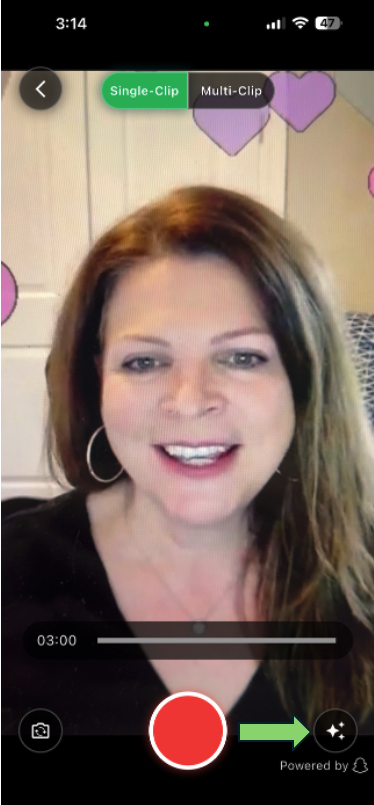
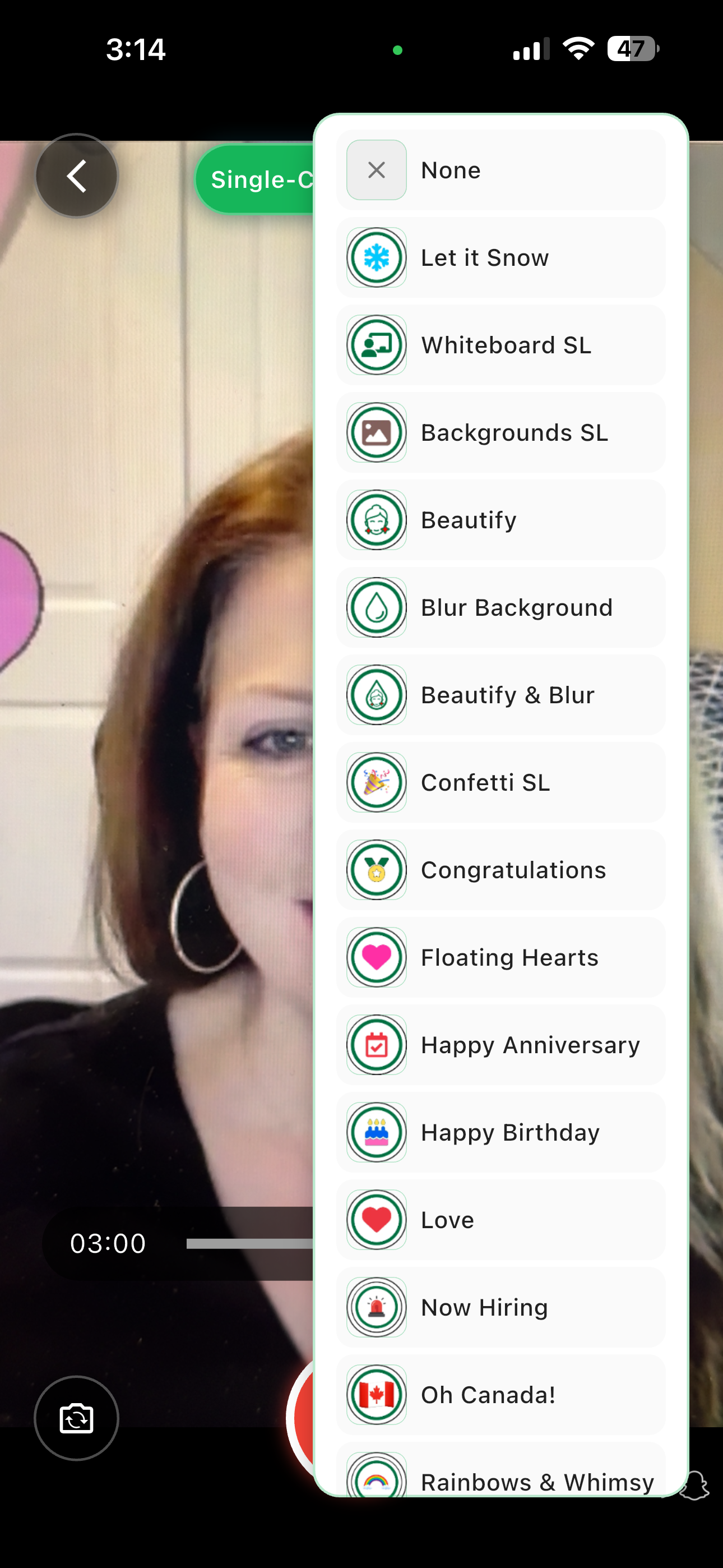
3. Try swiping in the background to reveal additional graphics on most lenses!
4. When using the lenses that let you enter custom text, such as the Whiteboard or Wood Sign lens, hold your hand up to display the sign; it will follow the movement of your hand! You can turn the sign off or on by swiping in the background.
Lens Preferences
1. Log into the SalesMail mobile app and tap the red record button.
2. Tap the lens icon in the lower-right and select a lens.
3. Try swiping in the background to reveal additional graphics on most lenses!
4. When using the lenses that let you enter custom text, such as the Whiteboard or Wood Sign lens, hold your hand up to display the sign; it will follow the movement of your hand! You can turn the sign off or on by swiping in the background.
Many SalesMail lenses will automatically use your preferences for beauty filter and virtual backgrounds. Learn how to set your preferences for the mobile app and/or the portal by clicking here.
To access SalesMail Lenses in the Portal:
1. Log into the SalesMail Portal from a browser on your computer (or your phone), using the same username and password you use to log into your mobile app.
2. Choose the 'Record (Lenses)' menu item on the left.
3. Choose a Lens from the drop-down menu and then record as usual!*
Heads up! 🚀 Some older or low-power computers might struggle to keep up with lenses, causing lag or out-of-sync audio and video. To avoid any surprises, try a quick test video first and see if your device is up for the challenge! 🎥✨