CTA Library stores your Call To Action buttons for easy access
If you aren't familiar with SalesMail Call-To-Action (CTA) buttons, start here.
The CTA Library in the SalesMail Desktop Portal is a place to store frequently used CTA button templates so that you can easily choose from them when you you want to add a CTA button to a SalesMail video. Any button templates you save in this library are available for you to quickly add to a SalesMail video from the share page in the SalesMail mobile app or desktop portal. This article walks through how to use the CTA Library and how to add CTA buttons from the CTA Library to your videos.
Here is what the CTA Library looks like:
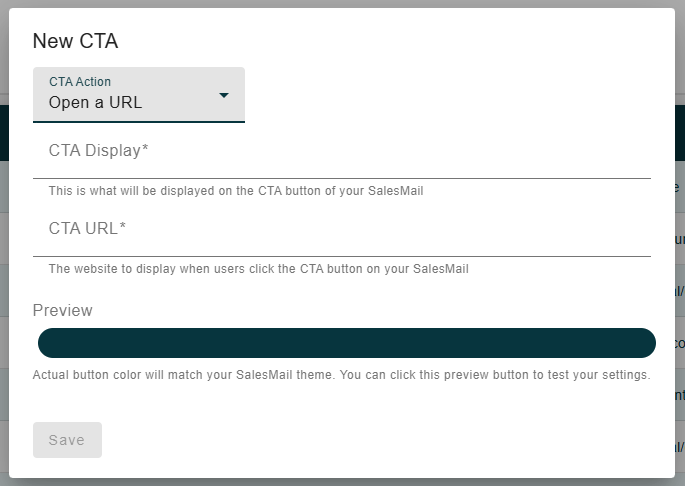
To add a new CTA button template to the CTA Library, click the plus sign button at the upper right of the CTA Library page.
Then fill out the form to add your CTA Display text and CTA URL* that the button will link to and hit save.
Once you have populated your CTA Library with button templates, they are ready to use when you share SalesMail videos using the SalesMail mobile app or portal.
If you need inspiration on the types of use cases for CTA buttons, click here.
*Advanced users - In addition to linking to websites, you have the option have your CTA button use a tel link to have someone click to call you, or a mailto link to have them email you.
- Example tel link - tel://4088675309 (replace 4088675309 with the phone number you want them to call)
- Example mailto link - mailto:salesdirector@community.com?subject=More info please (replace the email address with yours, and edit the subject line as needed)